Pick a quest
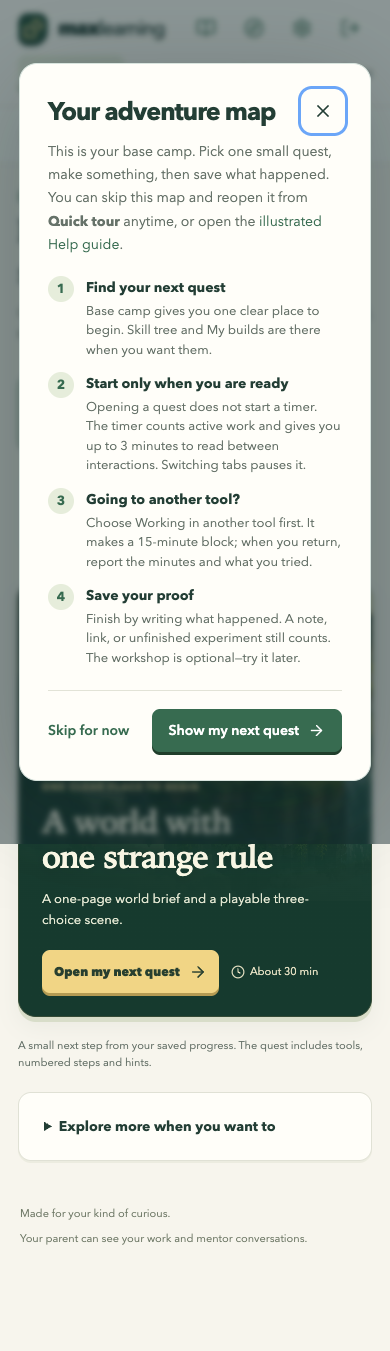
Open Base camp and choose one small adventure. Read the goal, then press Start only when you are ready.
ILLUSTRATED HELP
Max Learning helps a learner choose a small quest, make something, and save what happened. This guide shows the main screens with demo information only.
1. START TOGETHER
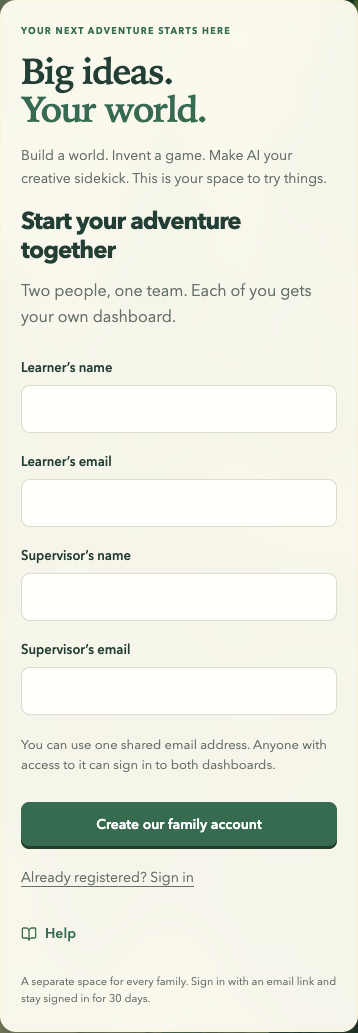
On the home page, enter four details: the learner’s name and email, then the supervisor’s name and email. Each person gets their own dashboard after confirming their email.
Already have an account? Choose Already registered? Sign in, or open Sign in. Enter the family email to receive a sign-in link. The link works for 15 minutes.
Shared device? Sign out when you finish.
2. LEARNER: FIRST QUEST
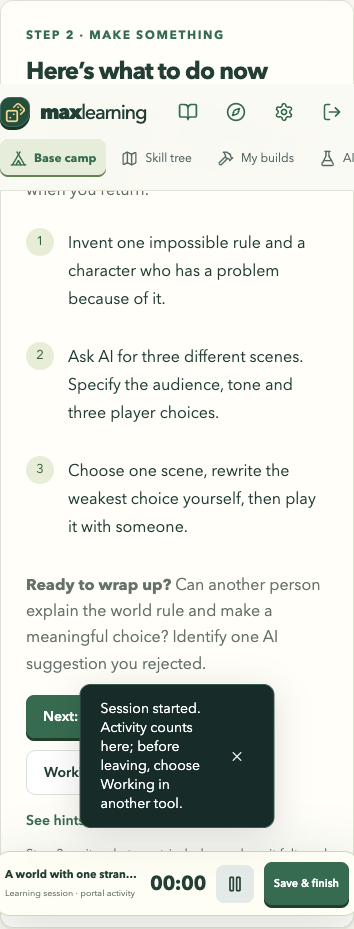
Open Base camp and choose one small adventure. Read the goal, then press Start only when you are ready.
Follow the steps. Try a first version, a sketch, a scene, or a useful answer. You can use the hints and toolkit when you need them.
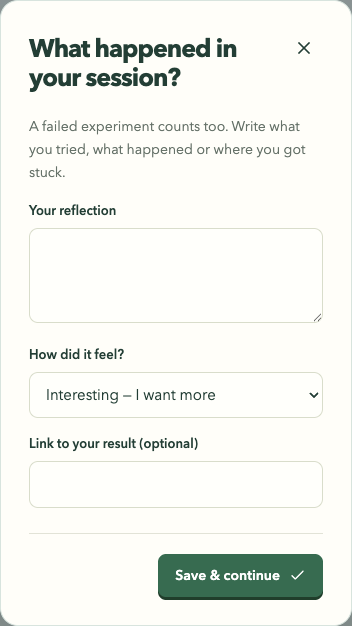
Choose Save & finish. Write what you tried, add an optional link to your result, and choose how it felt. A stuck or unfinished experiment still counts.
TIME AWAY FROM THIS PAGE
Before leaving an active study quest, choose Working in another tool. This opens one 15-minute block. When you return, choose I’m back — report my work, enter the minutes you really worked, and write what you tried.
The time is self-reported and remains in the learning record. It does not earn game-time credit. One minute of active learning in the portal earns one minute of game time; games and pauses do not.

SAVE YOUR PROOF
Choose Save & finish. Write what you tried, what happened, or where you got stuck. Then choose a feeling. Add a link to your result if you have one.
Honest notes help you and your parent choose a smaller or more interesting next step.
3. MAKE THE WORKSHOP YOURS
Open AI Lab and choose Open your workshop. The workshop can change its title, introduction, colour theme, and quest cards. It cannot change accounts, time, permissions, or services.
Describe the kind of quests you want. Review the preview, then choose Apply changes. A parent can also manage the family workshop template and its approved creative fields.

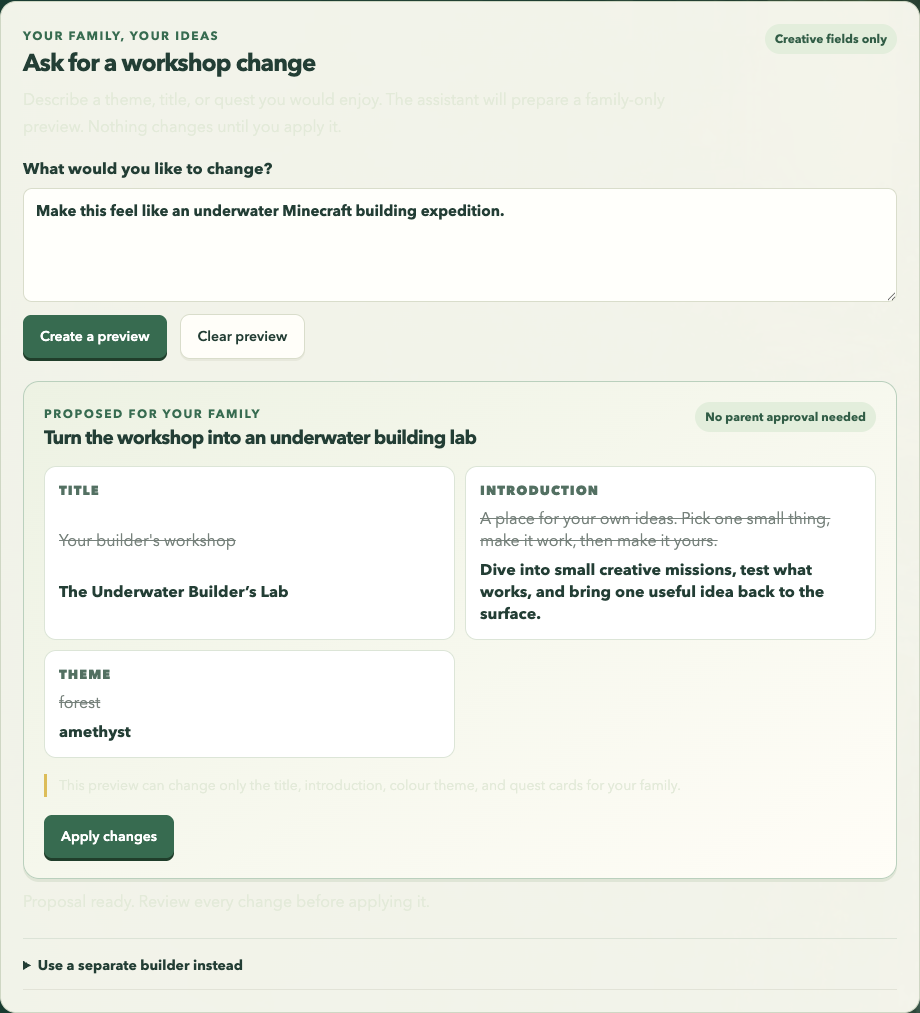
The AI mentor can coach you inside the signed-in portal. Workshop changes still use the separate review-and-apply controls shown here. For unrelated requests, the mentor will guide you back to your learning task.
4. PARENT OVERVIEW
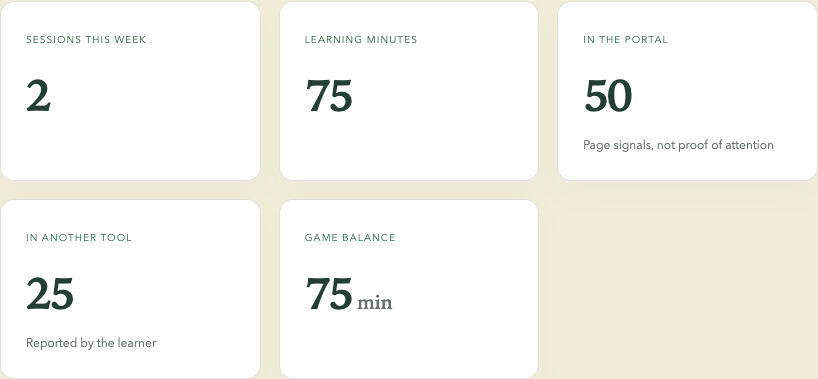
Sign in as a parent to see the past seven days: sessions, learning minutes, time reported in another tool, game balance, and saved reflections. Only active portal learning earns game-time credit at one minute for one minute. These are records for a conversation, not proof of attention or an assessment.
You can add a real-world task, set a daily game-time limit, and use the conversation starters to ask about the learner’s next step.
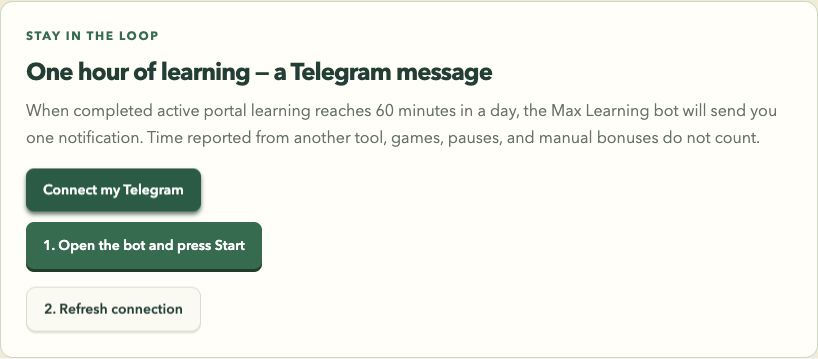
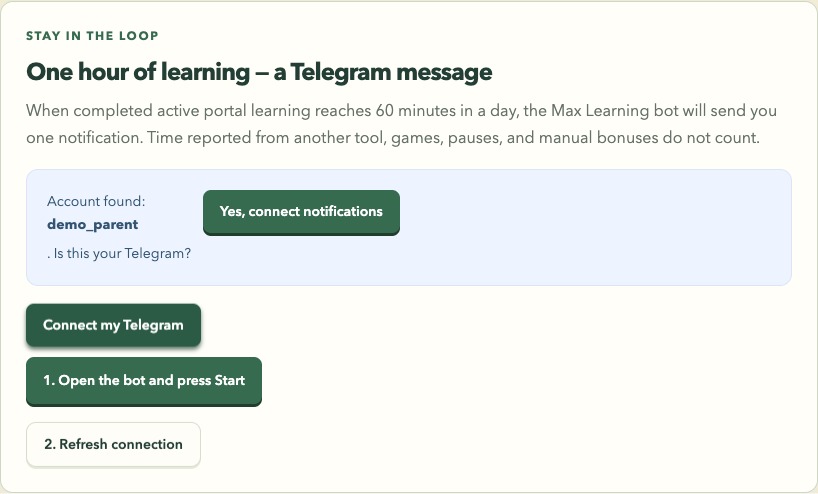
In Parent overview, choose Connect my Telegram. Open the Max Learning bot, press Start, then return and choose Refresh connection. When the account appears, choose Yes, connect notifications. Once connected, turn on the one-hour notification if you want it. It sends one message after completed active portal learning reaches 60 minutes in a day. Time reported from another tool does not count toward the notification.
Pick a quest, make something, and save an honest note about it.
Open Max Learning